Logging In
To access the zPatrol platform, users can log in at https://app.zpatrol.com
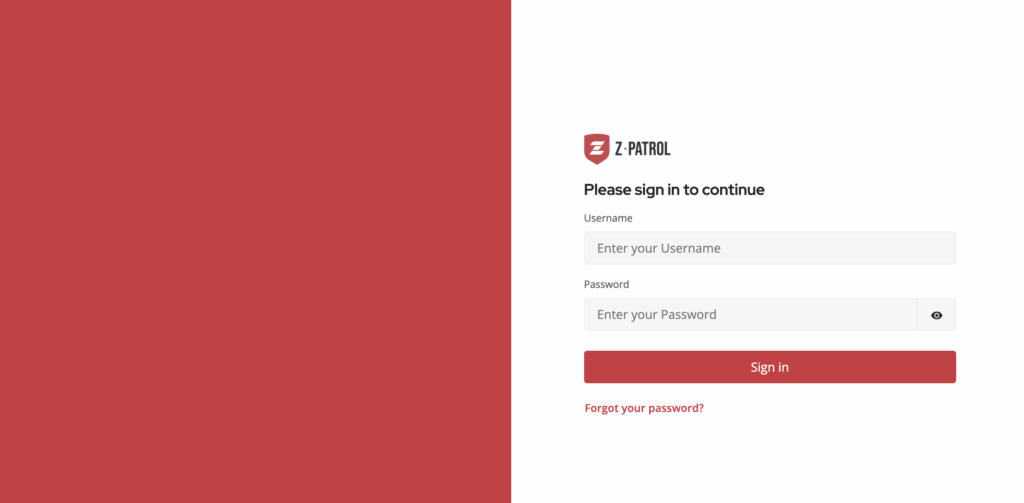
When a new user is created, they will receive an email notification with a temporary password. Each user will be prompted to reset their temporary password at first login.
Logging Out
Users with access to the zPatrol Admin Dashboard (Admin, Reporting, and Dispatch) will see their name in the upper right corner of the application. To log out, click the dropdown arrow next to the name and select Logout.

For Form Entry users, such as those using patroller devices, the logout option is intentionally hidden to prevent accidental logouts that could delay access for the next patroller on duty.
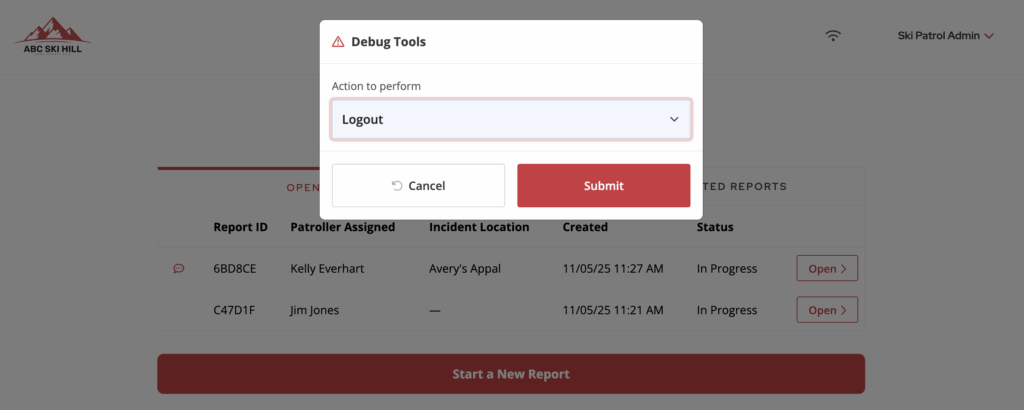
If a Form Entry user does need to log out, they can click or tap the site logo in the upper left corner of the screen five times. After the fifth click, a modal will appear prompting the user to choose a page action. By default, it will suggest a page reload. The user should select Logout from the list of options and click Save to complete the logout process.
Setting Up New Patroller Devices
The zPatrol system is a web-based application that can be used on any tablet, laptop, or desktop device with internet access. The platform is designed to support device-based authentication, meaning each physical device rather than each individual patroller has its own unique login credentials.
Each patroller device is assigned a dedicated login that uses an email address and password. Once signed in, the device will remain logged in for up to 30 days, provided the site is accessed at least once during that period to refresh the device’s access token.
For mountains using multiple devices, we recommend using the plus-addressing feature to uniquely identify each device while still routing all notifications to a single email inbox. This feature is supported by both Microsoft 365 and Gmail. For example, if your main patrol email address is patrol@myskihill.com, you can create device-specific logins such as:
— patrol+device1@myskihill.com
— patrol+device2@myskihill.com
This approach keeps all device activity organized and ensures that all system notifications are delivered to one central patrol email account.
Adding New User Accounts
A subscription to zPatrol includes unlimited user accounts. Any user with Company Admin or Group Admin permissions can add new users at any time by navigating to Admin Dashboard > Admin > User Accounts > Add New User.
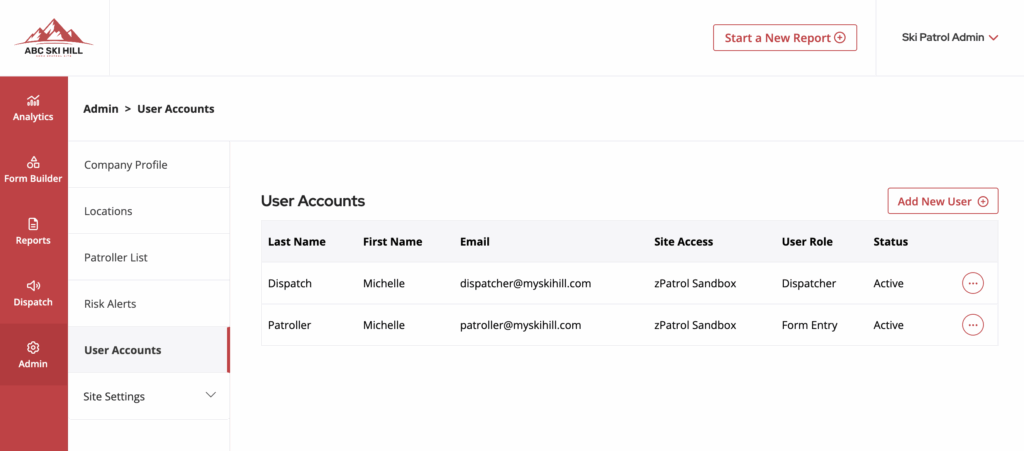
When adding a new user, you will be prompted to set a temporary password. The user will be required to update this password upon their first login. You will also need to select a user role, which determines the level of access granted within the system.
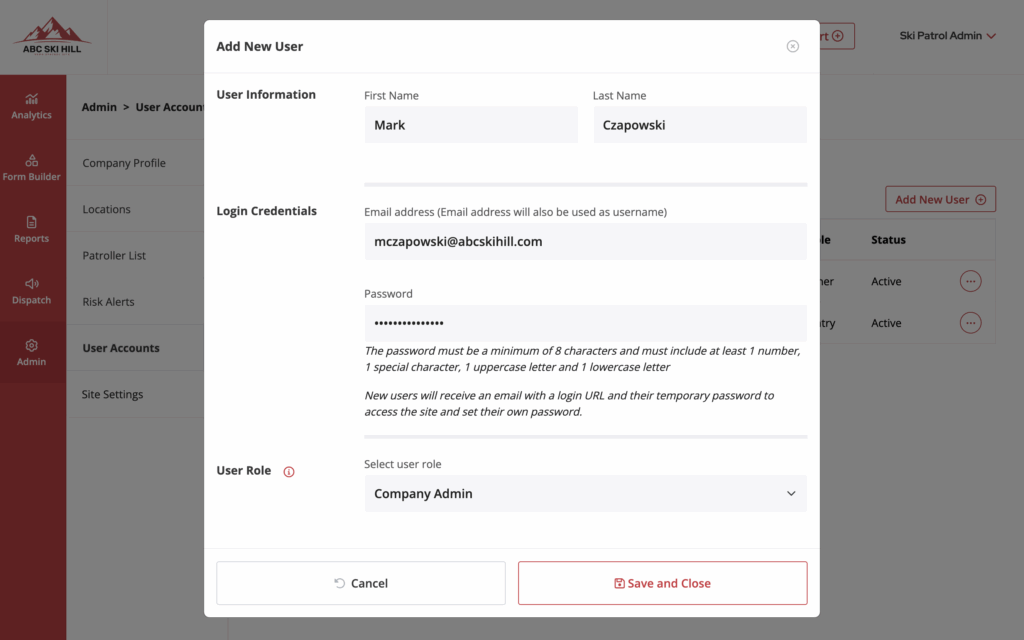
The available user roles are described below:
- Form Entry: Allows form entry with no dashboard or portal access. This role is typically assigned to patroller devices.
- Dispatcher: Allows form entry and dashboard portal access to analytics and to dispatch incidents.
- Reporting: Allows form entry and dashboard portal access to analytics and reporting tools.
- Form Manager: Allows form entry and dashboard portal access to analytics, form builder, reports, and the ability to dispatch incidents.
- Company Admin: Allows form entry and dashboard portal access to analytics, admin tools, form builder, reports, and dispatch functions.
- Group Admin: Allows form entry and dashboard portal access to analytics, admin tools, form builder, reports, and dispatch functions, with the added ability to switch between multiple sites using the dropdown selector. (Note: Group Admins can only be created by zPatrol administrators.)