
Creating a New Form
zPatrol allows users to create two new types of report forms, including Incident forms and Other (Supplemental) forms.
Incident Report Forms:
Any report submitted using an Incident Report template counts as a primary incident in the zPatrol system and increases the incident count on the analytics dashboard once submitted or manually resolved.
Other (Supplemental) Report Forms:
Reports submitted using an Other report template are considered supplemental and do not affect analytics. These may include related forms such as witness statements or courtesy rides. Supplemental reports can be linked to primary incident reports for easier tracking and consolidated report downloads.
To create a new form, navigate to Admin Dashboard > Form Builder. Select the tab for the type of form you want to create, then click Add New Form at the bottom of your existing form list. You will be prompted to either start a blank form or duplicate an existing one from the available dropdown list.
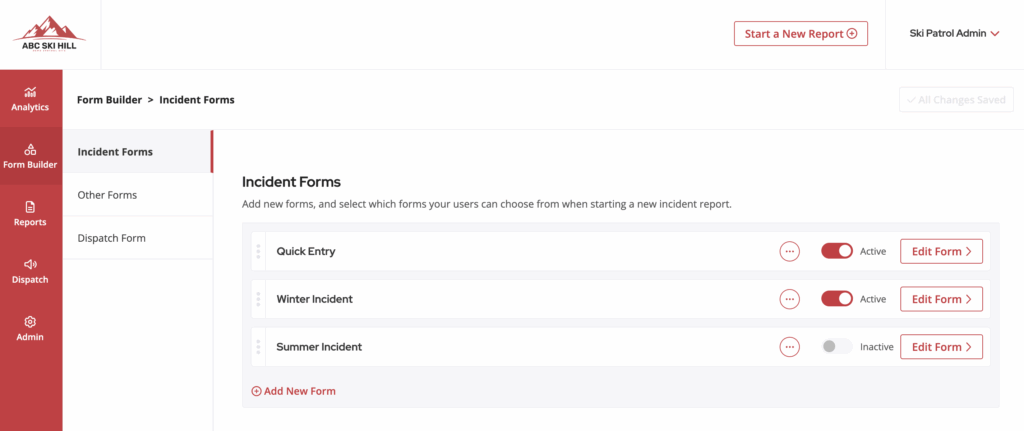
Creating Conditional Form Fields and Sections
zPatrol allows you to control when certain fields or entire sections appear on a form based on another field’s value.
To show or hide a field or section:
- Open the form field or section you want to control.
- Click the Actions icon (three dots in a circle) and choose Edit Field or Edit Section.
- In the Edit window, open the Conditional Visibility dropdown.
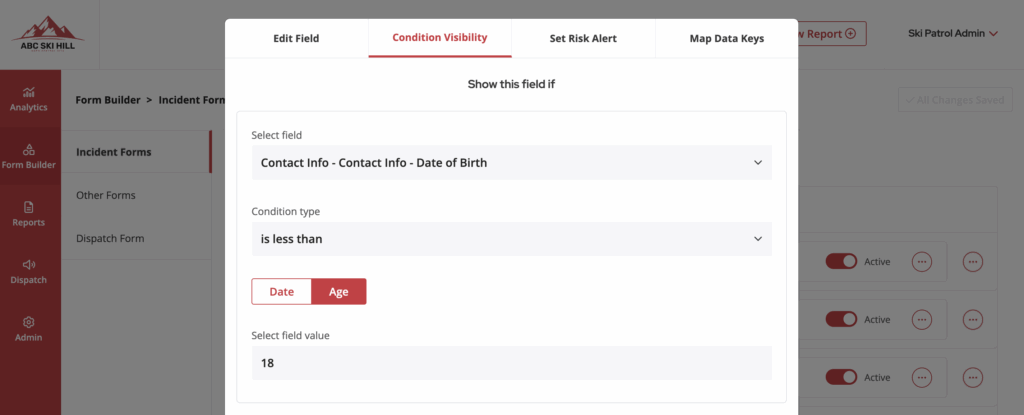
- Choose the field that will control visibility. Fields are listed in the format Page Name > Field Label.
- Select the value that must be met for the field or section to appear.
Example
Show the “Parent Signature” field only when “Contact Info > Guest’s Age” is less than 18.
Setting Risk Alerts
Risk Alerts let administrators automatically notify specific people when a form field meets certain conditions, such as an employee incident or a collision with an object.
How Risk Alerts appear and how to use them
Reports with matched Risk Alert criteria display a red number icon in the Risk Alerts column of the Reports tab. Click the number to see which specific alerts were triggered.
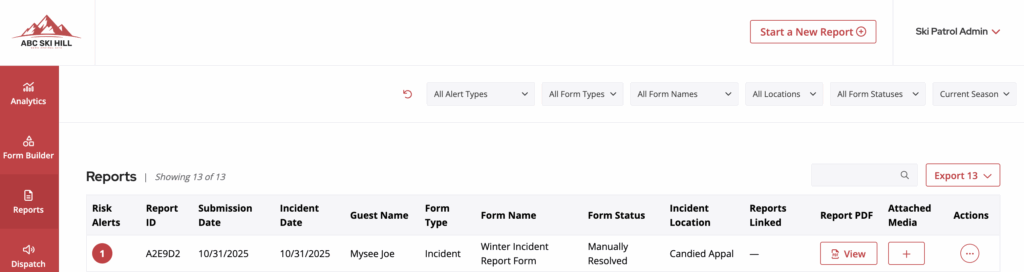
Risk Alert categories are also filterable data points across reports and analytics. You can filter and export only the incidents that triggered a specific alert, such as Employee Incident.

Follow these steps to set up and connect a Risk Alert to a form field:
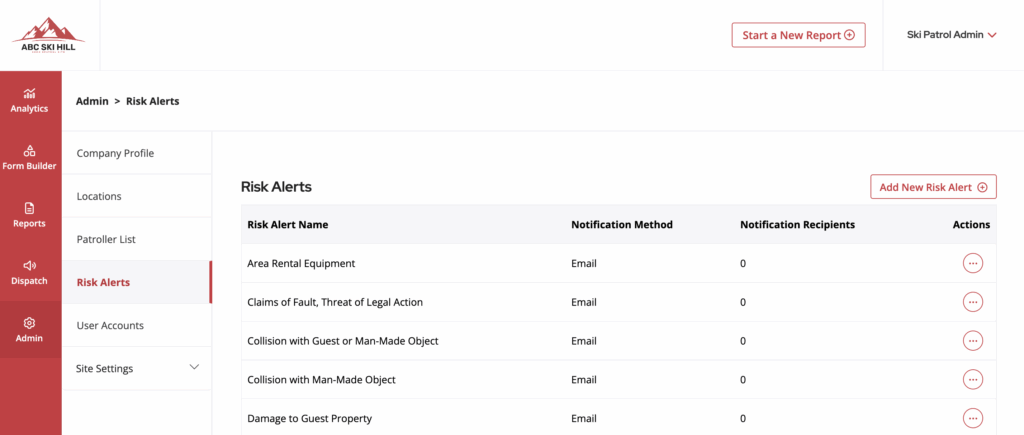
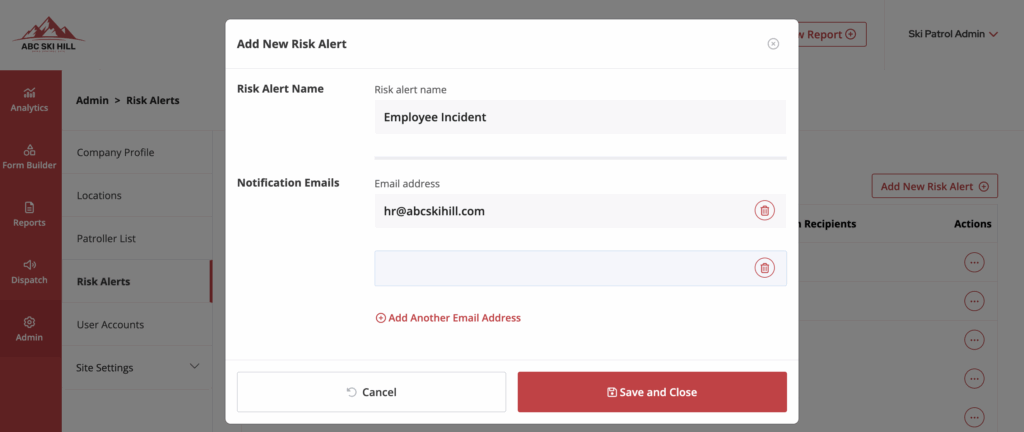
1. Create a Risk Alert
• Navigate to Admin Dashboard > Admin > Risk Alerts
• Click Add New Risk Alert
• Name the alert, for example Employee Incident or Collision with Object
• (Optional) Add email addresses for anyone who should be notified
• Click Save and Close
2. Open the Form Builder
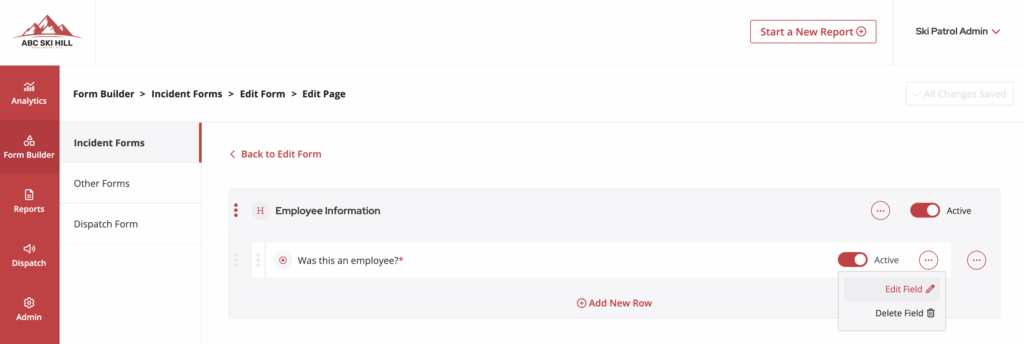
• Go to Admin Dashboard > Form Builder
• Open the form that contains the field you want to use as the trigger — Example: set an Employee Incident alert on a field that asks “Was this an employee?”
3. Assign the Risk Alert to a field
• Click Edit on the target field
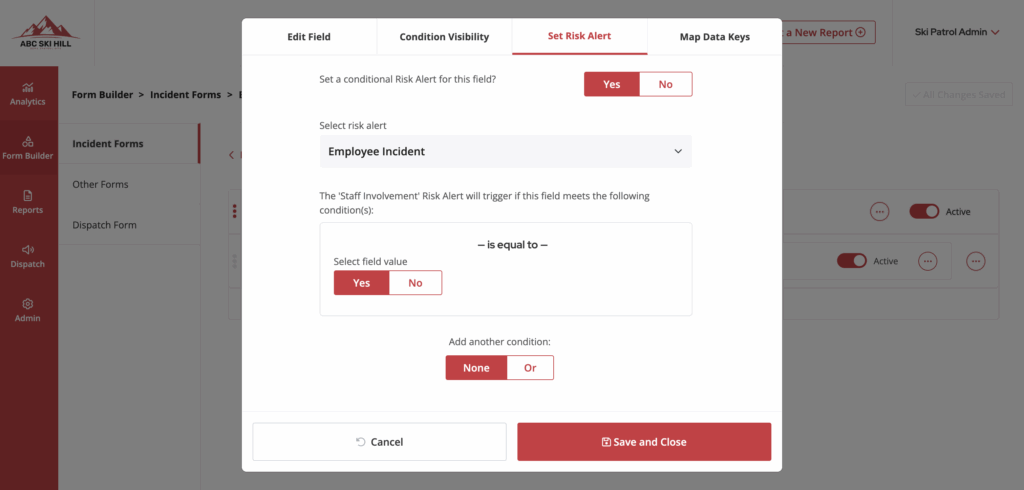
• In the Edit Field modal, open the Risk Alert tab
• Select Yes to enable a conditional Risk Alert
• Choose the Risk Alert you created from the dropdown
• Set the trigger condition — Example: if the field is “Was this an employee?” set the value to Yes
• Click Save and Close
4. Test the Risk Alert
• Submit a test report that meets the condition
• Confirm you see the alert in the Risk Alerts column on the Reports dashboard
• Verify that notification emails are received
Adding Form Submission Email Notifications
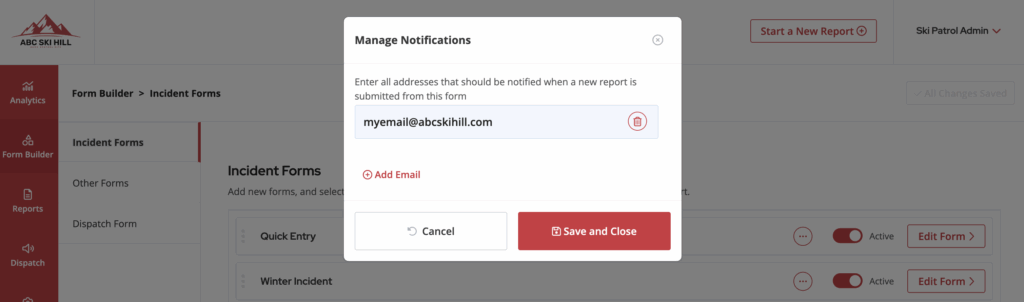
You can attach an email notification to any incident or supplemental form so specific team members are alerted when a new submission comes in. To set this up, find the form you want to manage notifications for. Click the red Actions icon (three dots in a red circle) and select Manage Notifications.
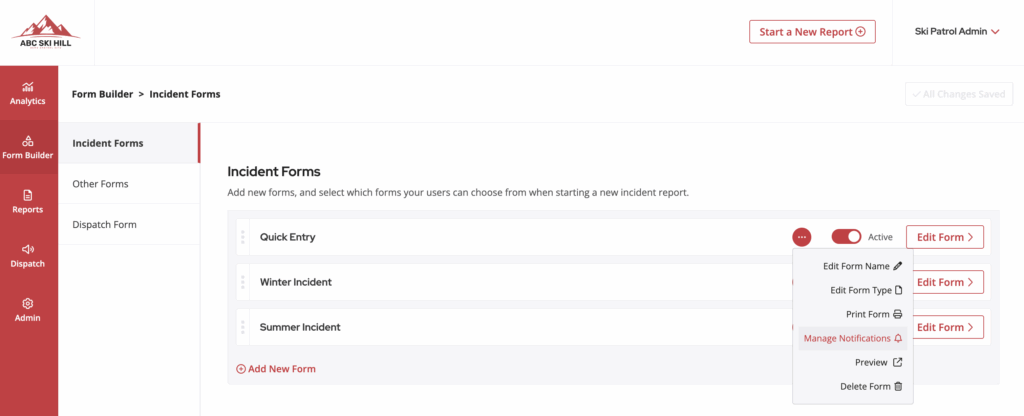
From there, add one or more email addresses. Each address you add will receive an email every time a form of that type is submitted.
Printing Blank Form Copies
If you need a blank paper copy of a form you’ve created in the zPatrol system, locate the form in your list and click the red Actions icon (three dots in a circle). Select Print Form to generate a PDF version that includes all fields you’ve created—including conditional ones—with blank spaces beside each field for manual entry.

Mapping Data/Analytics Keys
Mapping analytics keys ensures that your form fields correctly connect to the data used in dashboards and reports. If a field’s value isn’t appearing where expected, it may not be mapped to the proper data key.
To map a field:
- Open the form in the Form Builder.
- Click the Actions icon (three dots in a circle) next to the field you want to map and select Edit Field.
- In the Edit Field window, open the Map Data Keys tab.
- Use the first dropdown to choose the correct data key that matches the field’s purpose.
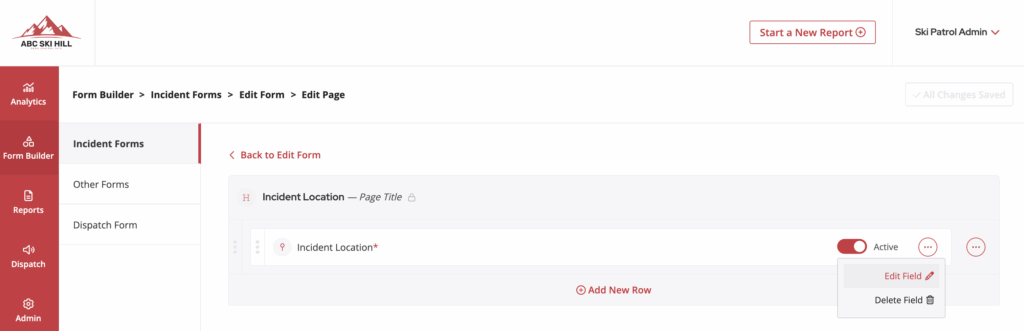

For example, if you have a custom field for Location, select the “Incident Location” data key so the field data appears in analytics and on dashboards correctly.
Current analytics categories include First Name, Last Name, Date of Birth, Phone, Email, Address, Skill Level, Incident Date, Incident Time, Incident Location, Patroller Completing Report, Patroller Start Time, Patroller End Time, Equipment Type, and Patient Vitals.
Once a field is mapped, a small red key icon appears beside it in the form builder, similar to the icons used for Risk Alerts or RFID mapping.
Mapping RFID/Barcode API Data
zPatrol can automatically fill form fields with data pulled from your system whenever an RFID, barcode, or QR code is scanned (or manually entered, if enabled). To enable this, your system must provide API access to the required data, be reachable over the internet, and support either standard or custom authentication methods.
When a scan occurs, zPatrol sends a secure HTTPS request (JSON preferred, XML supported) to your API and maps the returned key-value pairs to the corresponding form fields.
This functionality involves a one-time onboarding fee and requires development work during setup to connect your third-party system. Once implemented, mapping each data point is simple:
- Open the form in the Form Builder.
- Click the Actions icon (three dots in a circle) next to the field you want to map and select Edit Field.
- In the Edit Field window, open the Map Data Keys tab.
- Use the RFID or Barcode Scanning dropdown to select the API data key that matches the value for that field.
After mapping your fields, add a Scan button at the start of your form to prompt patrollers to scan a barcode or RFID card for each guest. Drag and drop this button into your form like any other field. Once added, a large scan button will appear during form entry. When a scan is successful, all mapped fields will automatically populate with the guest’s data, saving patrollers significant time on data collection.
Importing and Exporting Form Templates
Company Admins and Super Admins have the ability to import and export form templates. This feature is especially useful for multi-resort organizations that want to standardize forms across multiple locations. If another mountain has shared an exported form template file with you, this is the option to use to import it into your site.
To export a form template:
- Navigate to Admin Dashboard > Form Builder.
- Select the form category you want to access (Incident or Other).
- Click the Actions dropdown next to the desired form and select Export Form Template.
- A file will be downloaded that can be shared and imported by another zPatrol user.
To import a form template:
- In the Form Builder, select the form category you want to access (Incident or Other).
- Click Import Template at the bottom of the list.
- Choose the file you want to import, and the form will be added to your list of available templates.